
Making Windows Disappear: A Linux Developer’s Guide to a Production-Grade WSL2 Setup
I’ve been a Linux user my entire career. My development workflow lives and breathes in the terminal, Zsh, Python environments, Docker, AWS, Git, the whole ecosystem. When my office handed me a Windows

I’ve been a Linux user my entire career. My development workflow lives and breathes in the terminal, Zsh, Python environments, Docker, AWS, Git, the whole ecosystem. When my office handed me a Windows laptop, my first instinct was mild dread. But then I remembered: WSL2 exists, and when set up properly, it makes Windows completely invisible.
This is not a “hello world” WSL tutorial. This is the guide I wish I had, a complete, production-grade setup that gives you a native Linux development experience on Windows, right down to systemd, a beautiful shell prompt, pyenv, nvm, Docker and AWS CLI. Everything a modern developer needs, fully configured and ready to go.
Let’s make Windows just a bootloader.
What You’ll End Up With
By the end of this guide, you’ll have:
- Ubuntu 24.04 LTS running on WSL2 with systemd enabled
- Zsh + Starship prompt with syntax highlighting, autosuggestions, and fuzzy search
- Python 3.12 managed by pyenv, plus uv for blazing-fast package management
- Node.js LTS managed by nvm, plus Bun
- Docker fully integrated via Docker Desktop
- AWS CLI v2 with SSO support
- Modern CLI tools: ripgrep, bat, fd, fzf, neovim, tmux, fastfetch
- VS Code running natively inside WSL
- A terminal that opens clean, fast, and directly in your home director, every single time
Prerequisites
- A Windows machine (Windows 10 version 2004+ or Windows 11)
- Docker Desktop installed (this also installs WSL as a side effect)
- An internet connection
- About 30–45 minutes
Step 1: Verify WSL2 and Install Ubuntu
Open PowerShell as Administrator and first make sure WSL2 is the default:
wsl --set-default-version 2
Now check what distros you have installed:
wsl --list --verbose
If you installed Docker Desktop, you’ll likely only see this:
NAME              STATE           VERSION
* docker-desktop    Stopped         2
That’s Docker’s internal distro, you can’t develop in it. You need a real Linux distro. Install Ubuntu 24.04:
wsl --install -d Ubuntu-24.04
This will download and install Ubuntu. Once it finishes, it’ll ask you to create a Unix username and password. Use your actual first name as the username (lowercase, no spaces), you’ll type this every time you use sudo.
After setup is complete, set Ubuntu as your default distro:
wsl --set-default Ubuntu-24.04
wsl --list --verbose
You should now see:
NAME              STATE           VERSION
* Ubuntu-24.04      Running         2
  docker-desktop    Stopped         2
The * next to Ubuntu means it's your default. We're off to a great start.
Step 2: The .wslconfig File — Giving WSL Real Resources
This file lives on the Windows side and is the single most impactful configuration you can make. It controls how much memory, CPU, and swap WSL2 gets. Without it, WSL can consume all your RAM and never give it back.
Open Notepad with PowerShell:
notepad $env:USERPROFILE\.wslconfig
Paste in the following (adjust memory and processors based on your machine specs):
[wsl2]
memory=8GB
processors=4
swap=4GB

[experimental]
autoMemoryReclaim=gradual
networkingMode=mirrored
dnsTunneling=true
firewall=true
sparseVhd=true
A few things worth understanding here:
- autoMemoryReclaim=gradual — prevents WSL from hoarding RAM. Without this, WSL grabs memory and never releases it back to Windows.
- networkingMode=mirrored — mirrors Windows network interfaces into WSL. This is a game-changer for VPN users, and it also means localhost in WSL is directly accessible from Windows browsers.
- sparseVhd=true — the virtual disk grows and shrinks dynamically, saving precious disk space.
Save and close Notepad.
Step 3: The wsl.conf File — Configuring WSL from the Inside
Now open WSL (type wsl in PowerShell or open an Ubuntu tab in Windows Terminal) and jump to your home directory:
cd ~
Then create the per-distro configuration file:
sudo nano /etc/wsl.conf
Paste this in:
[boot]
systemd=true

[automount]
enabled=true
root=/mnt/
options="metadata,umask=22,fmask=11"
mountFsTab=true

[network]
generateHosts=true
generateResolvConf=true
hostname=dev-wsl

[interop]
enabled=true
appendWindowsPath=false
The two most important lines here are:
- systemd=true — this enables systemd, meaning you can use systemctl natively, just like on a real Linux server. This unlocks SSH agents, service management, and a lot more.
- appendWindowsPath=false — prevents Windows PATH from bleeding into your Linux environment. Without this, your shell is polluted with hundreds of Windows paths, slowing down tab completion and causing general chaos.
Save with Ctrl+O → Enter → Ctrl+X.
Now shut down WSL and restart it to apply both configs:
# In PowerShell
wsl --shutdown
wsl
Verify systemd is running:
systemctl --version
You should see systemd 255 or similar. If you do, systemd is live.
Step 4: Update the System and Install Essential Tools
First, update the package lists and upgrade everything:
sudo apt update && sudo apt upgrade -y
Now install all the essential tools in one shot:
sudo apt install -y \
  build-essential curl wget git unzip zip \
  ca-certificates gnupg lsb-release \
  software-properties-common apt-transport-https \
  jq bat fd-find ripgrep fzf htop tree \
  net-tools dnsutils \
  zsh tmux neovim
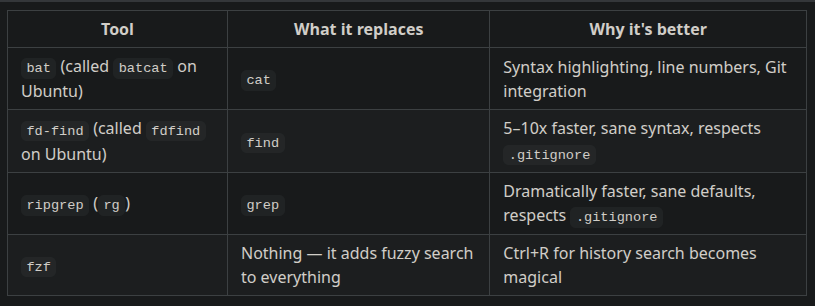
Here’s a quick tour of the modern tools in that list that you might not know:
Step 5: Zsh — Your New Default Shell
Set Zsh as your default shell:
chsh -s $(which zsh)
It’ll ask for your password. After that, install Starship, a blazing-fast, cross-shell prompt that shows your git branch, Python environment, Node version, AWS region, and anything else you care about:
curl -sS https://starship.rs/install.sh | sh
Then install Zinit, the best Zsh plugin manager. It lazy-loads plugins, meaning your shell starts instantly regardless of how many plugins you have:
bash -c "$(curl --fail --show-error --silent --location https://raw.githubusercontent.com/zdharma-continuum/zinit/HEAD/scripts/install.sh)"
When it asks about installing the recommended annexes, type y and hit Enter.
Step 6: Writing Your .zshrc
Now let’s build a proper .zshrc. Paste this entire block directly into your terminal — the cat > ... << 'EOF' syntax writes it to the file for you:
cat > ~/.zshrc << 'EOF'
# ── Zinit ──────────────────────────────────────────────────────────────
source "$HOME/.local/share/zinit/zinit.git/zinit.zsh"

# Annexes
zinit light-mode for \
    zdharma-continuum/zinit-annex-as-monitor \
    zdharma-continuum/zinit-annex-bin-gem-node \
    zdharma-continuum/zinit-annex-patch-dl \
    zdharma-continuum/zinit-annex-rust

# Plugins
zinit light zsh-users/zsh-autosuggestions
zinit light zsh-users/zsh-syntax-highlighting
zinit light zsh-users/zsh-completions
zinit light Aloxaf/fzf-tab

# ── History ────────────────────────────────────────────────────────────
HISTSIZE=100000
SAVEHIST=100000
HISTFILE=~/.zsh_history
setopt HIST_IGNORE_DUPS
setopt SHARE_HISTORY
setopt HIST_VERIFY

# ── Completion ─────────────────────────────────────────────────────────
fpath=(~/.zsh/completions $fpath)
autoload -Uz compinit && compinit

# ── Aliases ────────────────────────────────────────────────────────────
alias ls='ls --color=auto'
alias ll='ls -lah'
alias cat='batcat'
alias find='fdfind'
alias grep='rg'
alias vim='nvim'
alias dc='docker compose'
alias ..='cd ..'
alias ...='cd ../..'
alias wsl-restart='wsl.exe --shutdown'

# ── FZF ────────────────────────────────────────────────────────────────
[ -f /usr/share/doc/fzf/examples/key-bindings.zsh ] && \
    source /usr/share/doc/fzf/examples/key-bindings.zsh
[ -f /usr/share/doc/fzf/examples/completion.zsh ] && \
    source /usr/share/doc/fzf/examples/completion.zsh
export FZF_DEFAULT_COMMAND='fdfind --type f --hidden --follow --exclude .git'
export FZF_CTRL_T_COMMAND="$FZF_DEFAULT_COMMAND"
export FZF_DEFAULT_OPTS='--height 40% --layout=reverse --border'

# ── PATH ───────────────────────────────────────────────────────────────
export PATH="$HOME/.local/bin:$HOME/bin:$PATH"

# ── NVM (Node) ─────────────────────────────────────────────────────────
export NVM_DIR="$HOME/.nvm"
[ -s "$NVM_DIR/nvm.sh" ] && \. "$NVM_DIR/nvm.sh"
[ -s "$NVM_DIR/bash_completion" ] && \. "$NVM_DIR/bash_completion"

# ── Pyenv (Python) ─────────────────────────────────────────────────────
export PYENV_ROOT="$HOME/.pyenv"
export PATH="$PYENV_ROOT/bin:$PATH"
if command -v pyenv &>/dev/null; then
    eval "$(pyenv init -)"
fi

# ── Smart home: only redirect if dropped into a Windows system path ────
if [[ "$PWD" == /mnt/c/Windows* ]] || [[ "$PWD" == /mnt/c/Users/*/AppData* ]]; then
    cd ~
fi

# ── Starship Prompt ────────────────────────────────────────────────────
eval "$(starship init zsh)"
EOF
The “smart home” block near the bottom is important, it automatically redirects you to ~ if Windows Terminal accidentally drops you into a Windows system path, but it leaves you alone if you open a terminal from inside a project folder in VS Code.
Now reload the shell:
exec zsh
The first launch will take a few seconds as Zinit downloads and compiles the plugins. Every subsequent launch will be instant.
Step 7: Configure Starship
Create a Starship config to prevent timeout warnings and dial in the prompt behavior:
mkdir -p ~/.config && cat > ~/.config/starship.toml << 'EOF'
scan_timeout = 30
command_timeout = 500

[aws]
disabled = true

[directory]
truncation_length = 4
EOF
We disable the AWS module here because it polls your AWS config on every prompt render and shows the current region constantly, useful when you need it, noisy when you don’t. Re-enable it anytime by removing that block.
Step 8: Git Configuration
git config --global user.name "Faran Mohammad"
git config --global user.email "faran@email.com"
git config --global core.editor "nvim"
git config --global init.defaultBranch main
git config --global pull.rebase true
git config --global core.autocrlf false
git config --global alias.lg "log --oneline --graph --decorate --all"
git config --global alias.st "status -sb"
The core.autocrlf false line is critical on WSL, without it, Git might convert your line endings to Windows-style CRLF, which causes all sorts of subtle bugs in shell scripts and Docker containers.
Generate an SSH Key for GitHub
ssh-keygen -t ed25519 -C "faran@email.com" -f ~/.ssh/id_ed25519
Hit Enter twice to skip the passphrase (or set one for extra security).
Copy your public key to the Windows clipboard:
cat ~/.ssh/id_ed25519.pub | clip.exe
Then go to github.com/settings/keys, click New SSH key, and paste it in.
Step 9: Python with pyenv
Never use the system Python. pyenv lets you install and switch between any Python version cleanly.
First, install the build dependencies:
sudo apt install -y make libssl-dev zlib1g-dev libbz2-dev \
  libreadline-dev libsqlite3-dev libncursesw5-dev xz-utils \
  tk-dev libxml2-dev libxmlsec1-dev libffi-dev liblzma-dev
Install pyenv:
curl https://pyenv.run | bash
Reload the shell so pyenv is on PATH:
exec zsh
Install Python 3.12 (this compiles from source — takes 3–5 minutes, totally normal):
pyenv install 3.12.3
pyenv global 3.12.3
Verify:
python --version
# Python 3.12.3
Install uv — The Fast Package Manager
uv is a modern Python package manager written in Rust. It's 10–100x faster than pip and handles virtual environments beautifully. If you do any serious Python work, you want this:
curl -LsSf https://astral.sh/uv/install.sh | sh
Usage is simple, instead of pip install, use uv pip install. Instead of python -m venv .venv, use uv venv.
Step 10: Node.js with nvm
curl -o- https://raw.githubusercontent.com/nvm-sh/nvm/v0.39.7/install.sh | bash
exec zsh
nvm install --lts
nvm use --lts
nvm alias default node
Verify:
node --version
npm --version
Install Bun
Bun is a fast all-in-one JavaScript runtime and package manager:
curl -fsSL https://bun.sh/install | bash
exec zsh
bun --version
Step 11: Docker Desktop Integration
If you installed Docker Desktop on Windows, WSL integration doesn’t happen automatically, you need to explicitly enable it for your Ubuntu distro.
Open Docker Desktop → click the ⚙️ gear icon → Resources → WSL Integration → toggle on Ubuntu-24.04 → click Apply & Restart.
Wait about 10 seconds, then in WSL:
exec zsh
docker --version
docker ps
You should see Docker version 29.x.x and an empty container table. Docker Desktop acts as the backend engine; WSL just gets the CLI injected when the integration is enabled.
Important: Docker Desktop must be running on Windows for the docker command to work in WSL. It doesn't auto-start with WSL.
The Golden Rule: Keep Projects in the Linux Filesystem
This is the single biggest performance decision you’ll make. Always keep your code inside the WSL filesystem, not on /mnt/c/.
✅  ~/projects/       ← all your code lives here (native ext4, fast)
❌  /mnt/c/Users/...  ← never put projects here (10x slower, permission mess)
Docker volume mounts from /mnt/c/ are dramatically slower due to cross-filesystem I/O. Your FastAPI server, your test runner, your build tools — everything will be noticeably faster when working from ~/projects/.
Step 12: AWS CLI v2
curl "https://awscli.amazonaws.com/awscli-exe-linux-x86_64.zip" -o "awscliv2.zip"
unzip awscliv2.zip
sudo ./aws/install
rm -rf aws awscliv2.zip
Verify:
aws --version
# aws-cli/2.x.x Python/3.x.x Linux/...
Configure AWS Credentials
If your org uses SSO (most enterprise setups):
aws configure sso
It’ll print a URL — copy it and open it in your Windows browser to complete the SSO login. Once authenticated, your credentials are live.
Since SSO tokens expire every 8–12 hours, add a handy alias to your .zshrc:
echo "alias awslogin='aws sso login --profile default'" >> ~/.zshrc
Now awslogin is all you need to refresh credentials each morning.
If you use access keys:
aws configure
Enter your Access Key ID, Secret Access Key, default region, and json as the output format.
Step 13: fastfetch — Because You Earned It
sudo add-apt-repository ppa:zhangsongcui3371/fastfetch -y
sudo apt update
sudo apt install -y fastfetch
Run it:
fastfetch
You’ll get a beautiful system info display showing your distro, kernel, CPU, memory, shell, and more. Add it to your .zshrc to see it on every new terminal:
echo 'fastfetch' >> ~/.zshrc
Step 14: Windows Terminal Polish
Set Ubuntu as Your Default Profile
Open Windows Terminal → Settings (Ctrl+,) → Startup → Default profile → select Ubuntu-24.04 → Save.
Now clicking + opens a Linux terminal instead of PowerShell.
Install a Nerd Font for Proper Icons
Starship uses special characters for icons, git symbols, and separators. Without a Nerd Font, you’ll see question marks and boxes instead.
Download JetBrainsMono Nerd Font:
https://github.com/ryanoasis/nerd-fonts/releases/latest/download/JetBrainsMono.zip
Extract the zip, select all .ttf files, right-click → Install for all users.
Then in Windows Terminal → Settings → Ubuntu-24.04 → Appearance → Font face → type JetBrainsMono Nerd Font → Save.
Step 15: VS Code Integration
Install the WSL extension by Microsoft in VS Code on Windows. Then from anywhere inside WSL, you can open VS Code in the current directory with:
code .
VS Code automatically installs a server component inside WSL and connects to it. The result: the editor lives on Windows but everything executes natively in Linux — the terminal, extensions, linting, debugging, Git, all of it. It’s seamless.
For Python development, install these extensions in the WSL context:
- ms-python.python
- ms-python.vscode-pylance
- charliermarsh.ruff
Step 16: Set Up Your Projects Directory
mkdir ~/projects
cd ~/projects
This is home base. All your repos live here. Never /mnt/c/.
Working with Virtual Environments in WSL
If you have existing Python projects on the Windows filesystem (in /mnt/c/), their .venv folders won't work in WSL — they contain Windows binaries. Create a fresh one from WSL:
cd your-project
python -m venv .venv
source .venv/bin/activate
pip install -r requirements.txt
Or with uv (much faster):
uv venv
source .venv/bin/activate
uv pip install -r requirements.txt
The Linux venv goes in .venv/bin/activate — not .venv/Scripts/activate (that's the Windows path).
Quick Reference: The Commands You’ll Use Daily
# Refresh AWS SSO credentials (expired token)
awslogin
# Restart WSL from inside WSL
wsl-restart
# Open current directory in VS Code
code .
# Pretty file view with syntax highlighting
cat filename.py          # (aliased to batcat)
# Fast recursive search
rg "search term"         # (ripgrep)
# Fast file find
fdfind "*.py"            # (fd-find)
# Fuzzy history search
Ctrl+R                   # (powered by fzf)
# Docker
dc up -d                 # docker compose up -d
dc down                  # docker compose down
docker ps                # list running containers
Verify Everything is Working
Run this final check:
python --version    # Python 3.12.3
node --version      # v24.x.x
bun --version       # 1.x.x
uv --version        # uv 0.x.x
docker --version    # Docker version 29.x.x
aws --version       # aws-cli/2.x.x
git --version       # git version 2.x.x
If all of those return version numbers, you’re done. You have a production-grade development environment on Windows that any Linux developer would be comfortable with.
The Architecture at a Glance
Windows (invisible layer)
└── Windows Terminal
    └── WSL2 / Ubuntu 24.04  ← your actual OS
        ├── Zsh + Starship prompt
        ├── pyenv → Python 3.12 + uv
        ├── nvm → Node LTS + Bun
        ├── Docker (via Desktop integration)
        ├── AWS CLI v2
        ├── Git + SSH keys
        └── VS Code Server  ← driven by VS Code on Windows
Closing Thoughts
The two things that make or break this setup are enabling systemd (the systemd=true line in wsl.conf) and keeping all project files inside the WSL filesystem. Everything else is polish — but those two are structural decisions that affect performance and compatibility across the board.
Once this is running, you’ll genuinely forget you’re on Windows. The terminal, the tools, the file system behavior — it all feels exactly like sitting in front of a Linux machine. Which, in a very real sense, is exactly what you’re doing.
Welcome home.
Questions or issues? Most problems in WSL come down to three things: wrong filesystem location (/mnt/c/ instead of ~/), Docker Desktop not running, or an expired AWS SSO token. Check those three first and you'll solve 90% of your problems.