
How I Flashed crDroid onto My MIUI/HyperOS Device and Almost Lost My Sanity
I have an Mi 11X, the Indian variant, that had been living in a drawer as my spare phone. Stock software, perfectly fine, perfectly forgettable. One evening I decided it deserved a second life as a cu
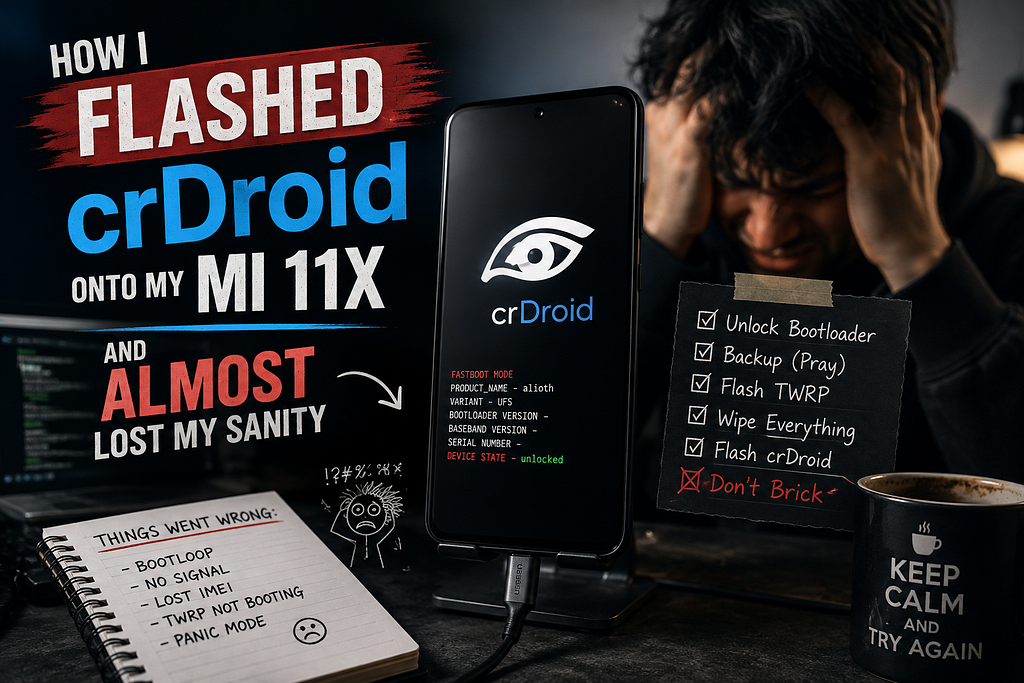
I have an Mi 11X, the Indian variant, that had been living in a drawer as my spare phone. Stock software, perfectly fine, perfectly forgettable. One evening I decided it deserved a second life as a custom ROM phone. I wanted three simple things out of it. A clean, modern build of Android. Working 5G, because a custom ROM I ran on it years ago never got 5G and that is exactly why I crawled back to stock. And I wanted my payment apps to keep working, because a phone that cannot pay for chai is a paperweight.
What I actually signed up for was an all nighter, several dozen reboots, a suspicious amount of staring at the Xiaomi logo, and a fresh understanding of how much a phone company can get in your way when you politely ask to use your own hardware. Here is the whole thing, every wrong turn included, because the wrong turns are the useful part.
The patient
First, know your device, because this bites people constantly. My phone reports as codename aliothin. That is the India specific flavour of alioth, which is the same silicon as the POCO F3 and the Redmi K40, a Snapdragon 870 board. It is an A/B device, which becomes very important later, and it was sitting on HyperOS 1.0, build V816.0.4.0.TKHINXM.
I confirmed all of this from the PC before touching anything, which I recommend, because guessing your codename is a great way to brick a phone:
adb devices -l
adb shell getprop ro.product.device      # aliothin
adb shell getprop ro.build.version.incremental   # V816.0.4.0.TKHINXM
adb shell getprop ro.boot.flash.locked    # 1  (bootloader locked)
That last line confirmed my suspicion. My bootloader was locked. I had unlocked this phone years ago, then went back to stock, and somewhere in that round trip it quietly relocked itself. So step one was to unlock it again. How hard could that be. Reader, it was hard.
Part one: the Xiaomi Community app, or how to apply for permission to own your phone
Here is the thing nobody warns you about. On HyperOS, you cannot just flip a switch in Developer Options and unlock. You have to apply for the privilege through the Xiaomi Community app, get approved, and only then does the countdown even begin. When I hit “Add account and device” in Mi Unlock status, the phone threw a little toast at me that said, and I quote, “Couldn’t add. Please go to Mi Community to apply for auth.” Cute.
So off I went to find the Xiaomi Community app. Except it is not on the Indian Play Store. Xiaomi shut down the Mi Community India service a while back, so the listing simply does not exist for me. I ended up pulling the app (package com.mi.global.bbs) from Xiaomi's own GetApps store. Fine. Progress.
Then the app opened, showed me its cheerful “Xiaomi Community, better together” splash screen, and froze there. Forever. I tried mobile data. I tried Wi-Fi. Same frozen splash. It turns out the app’s back end servers are blocked at the ISP level in India, a leftover from the 2020 app ban, so the app just sits there waiting for a server it can never reach. Better together indeed.
The fix for the freeze was a three part ritual: clear the app’s data, grant it every permission it asks for, and get on a VPN pointed at a country that is not India. I used ProtonVPN and connected it to a random exit node, and suddenly the app loaded like nothing was ever wrong. Clearing data plus permissions did most of the heavy lifting, and the VPN made sure the servers were reachable.
Now for the actual villain of this story: the unlock quota. Once you can finally reach the “Apply for unlocking” button, you discover that Xiaomi only hands out a tiny number of unlock slots per day, worldwide, and the pool refills at exactly midnight Beijing time. For me in India that is 9:30 PM. The slots vanish in under a second because there are bots hammering the endpoint. I sat there at 9:30 PM sharp, tapping the button like I was defusing a bomb, and got “Application quota limit reached, please try again after 07/25 00:00 GMT+8” every single time. This is not a bug. This is the design. Xiaomi built a queue that a normal human, tapping a normal screen, basically cannot win.
The hacky detour
After enough nights of losing the tap race, I stopped playing fair. There is a community tool called HyperSploit (from a developer known as TheAirBlow) that skips the whole quota circus by doing the account binding locally over ADB, so the official Mi Unlock tool just accepts your device without you ever winning a slot. The catch is that it only works on older HyperOS versions. It got patched around HyperOS 2.0.203.0, and my phone was still on 1.0, so it was in the working window.
I am going to be honest and not pretend this is squeaky clean. It is an unofficial exploit tool that forges the thing Xiaomi wants you to earn. It is my own phone, a spare, so I decided the tradeoff was fine for me. I grabbed it straight from the author’s GitHub, followed their own instructions, and did the binding that way. I am not going to reproduce the exact steps here, partly because you should read them from the source and understand what you are running, and partly because the whole point is that you take responsibility for that decision yourself. If your phone is on a newer HyperOS, this door is already closed for you and the painful quota queue is your only road.
Quirky note: it is a genuinely strange feeling to spend more effort convincing a phone that you own it than you spent buying it.
Part two: the Mi Unlock tool and the driver from hell
With the binding sorted, I moved to the official Mi Unlock tool on my Windows machine. First surprise: I had downloaded two folders that both looked like “the Xiaomi tool” and could not remember which was which. For the record, miflash_unlock is the bootloader unlocker, and MiFlash (the XiaoMiFlash.exe one) is a totally different beast for flashing stock ROMs and un-bricking. You want the first one for unlocking. I also checked the signatures to make sure I had the real thing and not some malware reskin, since fake Mi Unlock tools are a classic trojan horse. The genuine one is signed by Beijing Xiaomi, and it checked out.
Then the actual unlock refused to start. The tool sat there saying “Not connected to the phone” with the Unlock button greyed out, even though the phone was clearly in fastboot mode and clearly plugged in. Classic Windows driver nonsense.
I went digging on the PC and found the culprit. Windows could see my phone’s fastboot interface but had no working driver bound to it:
fastboot devices # returned nothing
# Windows saw this, in an Error state:
# Android   USB\VID_18D1&PID_D00D\A18E2EE2   Status: Error
That PID_D00D is the fastboot interface, and it had no driver. The kicker is that the two small driver packages I had did not even list that hardware ID. Only the big Google USB driver bundled inside the MiFlash folder did. So I force installed that one from an admin terminal:
pnputil /add-driver "C:\...\MiFlash20220507\...\Google\Driver\android_winusb.inf" /install
And just like that:
fastboot devices
# a18e2ee2   fastboot   <- finally
The device flipped from “Android, Error” to “Android Bootloader Interface, OK”, the Mi Unlock tool woke up, and I hit Unlock.
It said “Couldn’t unlock. Please unlock 168 hours later.” The “Verifying device” step went green. The “Unlocking” step went red. Translation: my binding was accepted, but Xiaomi still makes you wait a full seven days before it will actually let go. There is no skipping this timer, and if you log out of your account or factory reset during the wait, the clock starts over. So I did the hardest thing in all of computing. I waited.
Part three: seven days later
A week later I ran the tool again. Phone in fastboot, same account, click Unlock. This time all three steps went green: Verifying device, Unlocking, Done. “Unlocked successfully.” The phone auto rebooted, showed the little unlocked padlock icon near the camera, and wiped itself back to fresh stock. I confirmed it from the PC just to be sure:
fastboot getvar unlocked        # unlocked: yes
fastboot getvar anti            # anti: 1  (anti rollback index, low, safe)
fastboot getvar current-slot    # a
The bootloader was open. The genuinely hard part, the part that took a week of calendar time, was over. I was feeling smug. This was a mistake.
Part four: flashing crDroid, and every way it can refuse to boot
I lined up my kit. The ROM was crDroid 12.11, an Android 16 build, and I verified its MD5 against the download page so I knew the file was not corrupt:
Get-FileHash -Algorithm MD5 crDroidAndroid-16.0-20260724-alioth-v12.11.zip
# matched 76a2a300d91892dab7c60596ea8e83e5
Quirky note: while sorting my downloads I caught that I had accidentally grabbed an OrangeFox recovery for a device codenamed citrus, which is a completely different phone. Flashing that would have been a fun way to brick everything. Always, always check the codename in the filename.
The plan was the standard A/B dance. RAM boot a recovery (never flash it permanently on this device, that path ends in tears), format data, then sideload the ROM:
fastboot boot OrangeFox-R12.0-alioth-recovery.img
# then Format Data on the phone
adb sideload crDroidAndroid-16.0-20260724-alioth-v12.11.zip
The install said “Successful.” I rebooted. And the phone sat on the Xiaomi logo. Not the crDroid animation, just the plain static logo, forever. Ten minutes. Nothing.
Then it got weirder. OrangeFox itself refused to boot on the slot where crDroid lived. Black screen. But it booted perfectly fine on the other slot. I was now debugging two mysteries at once on a phone that has two of everything.
Here is where I burned the most time, so let me save you the trouble. The problem was the firmware base. A custom ROM sits on top of low level firmware (the modem, the bootloader bits, the security stuff), and crDroid Android 16 is built against a specific version of that firmware. My phone had a different, older one. When I first skipped the firmware step, I paid for it.
So I flashed the firmware. I grabbed the India firmware, OS1.0.2.0.TKHINXM, sideloaded it, re-flashed crDroid, and it still would not boot. At this point I was ready to throw the phone into the sea.
The actual answer, the thing that cost me hours, is this: crDroid needs the GLOBAL firmware, not the India one. The maintainer literally writes “do not use firmware versions other than OS1.0.2.0.TKHMIXM.” Custom ROMs for this phone are built against the global base. The India firmware ships different bootloader and modem blobs that crDroid was never built for, and that mismatch is exactly why the thing would not boot and why OrangeFox choked on that slot. The hardware is identical between the India and global versions, so cross flashing the global firmware is safe and is actually the normal thing to do. I had been so focused on protecting my 5G that I gave it the wrong regional firmware and shot myself in the foot.
For the record, I peeked inside the firmware zip to confirm it flashes both A and B slots, and it does, seventeen partitions each: abl, xbl, tz, hyp, modem, keymaster, dsp, and friends.
So I did it properly this time. Global firmware, then format, then crDroid, and I made one small but important change: I turned off the “Reflash OrangeFox after flashing a ROM” toggle, because on this A/B device that option was what corrupted the boot slot and caused the black screens.
fastboot --set-active=a
fastboot boot OrangeFox-R12.0-alioth-recovery.img
# Format Data on the phone
adb sideload fw_alioth_miui_ALIOTHGlobal_OS1.0.2.0.TKHMIXM_b69e6a5400_13.0.zip
# Format Data again
adb sideload crDroidAndroid-16.0-20260724-alioth-v12.11.zip   # reflash toggle OFF
adb reboot bootloader
fastboot getvar current-slot     # b
fastboot reboot
And the phone booted into crDroid’s own recovery, which was already a huge win because it meant the kernel and the firmware finally agreed with each other. It showed one last complaint: “Can’t load Android system. Reason: set_policy_failed:/data/cache.” That is just Android failing to set up the data partition on first boot, and the recovery offered the fix right there. I tapped Factory data reset, rebooted, and finally, gloriously, saw the words “Welcome to crDroid.” I may have made a small celebratory noise.
Part five: the Google apps and the finish line
crDroid does not ship Google apps, so nothing Google worked yet. I rebooted into crDroid’s recovery and sideloaded NikGapps:
fastboot reboot recovery
# on the phone: Apply update from ADB
adb sideload NikGapps-ShahabOS-arm64-16-20260730-unofficial.zip
# "Install complete with status 0"
# then Factory reset, then Reboot to system
Booted back up, signed into my Google account, and the Play Store was right there. Set up Wi-Fi, and the phone was, for the first time all night, just a normal working phone running a beautiful clean ROM.
The two things I came for:
5G. The “Enable 5G” toggle is present and switched on, which is the whole ballgame, because my old ROM could not even offer 5G. It shows LTE while I am on Wi-Fi, which is completely normal, since the phone will not chase a 5G connection while Wi-Fi is doing the work. In the network settings I could pick the NR mode (NR is the technical name for 5G, while LTE is 4G), and the capability is clearly there. Whether the 5G icon lights up at any given moment is down to Airtel’s coverage where I am standing, not the phone.
Payments. I ran the Play Integrity API Checker, and here is the honest scoreboard. BASIC integrity passes. DEVICE and STRONG both fail. On an unlocked bootloader with no root, that is exactly what you expect in 2026. Some UPI apps are happy with BASIC, but Google Pay and stricter banking apps want DEVICE integrity, which is currently red. The fix, which I have lined up as the next step, is to add Magisk plus a Play Integrity Fix module plus TrickyStore, which reliably flips DEVICE to green and gets the strict apps working. STRONG will stay red no matter what, because an unlocked bootloader physically cannot pass it, so a tiny handful of ultra paranoid apps may still refuse. That is the honest tradeoff of running a custom ROM, and I made my peace with it.
What I would tell past me
If I could send one message back in time it would be short. Use the global firmware. Everything else was survivable, but that single wrong assumption cost me the most sleep.
A few other lessons, cheaply bought:
The Xiaomi Community unlock quota is not a challenge you win with skill, it is a lottery you win with patience or a workaround, so plan for that emotionally.
On Windows, ninety percent of “the tool cannot see my phone” is a missing driver, not a broken phone. Check Device Manager for a device in an Error state before you panic.
This is an A/B phone, which means it has two of everything and will happily let you put the right thing on the wrong slot. Check fastboot getvar current-slot often.
Never flash a recovery permanently on this device and never relock the bootloader with a custom ROM on it, unless you enjoy the smell of a bricked phone in the morning.
And back up your stuff before you start, because unlocking wipes the phone and so does half of what comes after.
Was it worth an entire night and a week of waiting to modernize a spare phone that I mostly keep in a drawer? Absolutely not. Would I do it again? Also absolutely. That is the whole hobby in a nutshell.